

Variant Configuration Addon in SAP B1 | Product Configurator

Introduction of Variant Configuration Addon in SAP B1
Kabeer Consulting Group’s Variant Configuration Addon for SAP B1 is designed to help manufacturing and automotive businesses efficiently manage complex product variants with ease.
This powerful solution enables dynamic configuration of product attributes at the sales order level, seamless handling of multiple SKUs, and complete visibility across production processes. From attribute management to batch creation and delivery, the addon ensures accurate, flexible, and streamlined operations within SAP Business One.
Built to extend the standard capabilities of SAP B1, this addon empowers businesses to handle configurable products, optimize production workflows, and improve overall operational efficiency.
The Challenge: Struggling to Manage Product Variants in SAP B1?
Manufacturing and automotive companies often face challenges such as:
- Handling multiple product variants (size, color, specifications)
- Managing SKU-level complexity in sales orders
- Lack of flexibility in configuring products per customer requirement
- No visibility into stage-wise production progress
- Manual batch creation and tracking
- Inefficient coordination between sales, production, and inventory
Standard SAP Business One capabilities are not designed to handle highly configurable products with dynamic attributes.
The Solution: A Powerful Variant Configuration Addon Built for SAP B1
Kabeer Consulting Group’s Variant Configuration Addon enables businesses to:
- Configure products dynamically at the sales order level
- Manage multiple SKUs within a single order
- Track production processes stage-by-stage
- Automate batch creation and inventory flow
- Ensure complete visibility from order to delivery
This addon is purpose-built for complex manufacturing environments where flexibility and precision are critical.

How Works Variant Configuration Addon for SAP B1
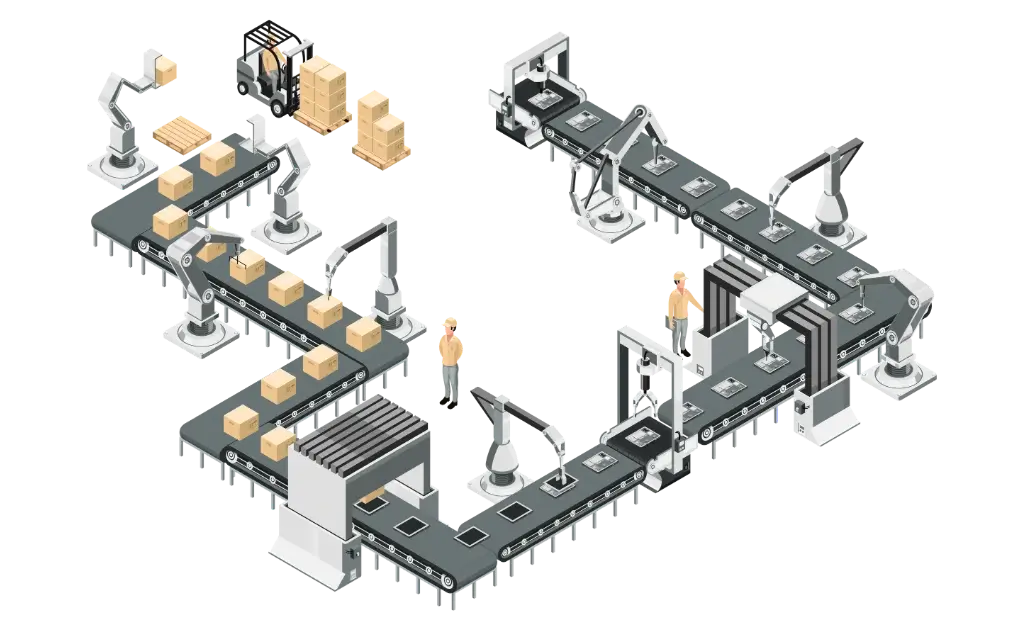
Proposed Solution in SAP B1
- ID: Non- Editable Unique Code of Attribute.
- Name: Name of Attribute.
- Type: This is type of Attribute Fixed (which are Unique for a Sales Order like Country of Origin) & Runtime (Which are different for SKUs in the Sales Order like Size, Color).
- Characteristics: The value type of an attribute like Numeric & Alpha-Numeric, used in later stages for calculation purpose.
- Code: Running Internal Code of Processes.
- Name: Name of Production Process.
These Processes & Attributes are then linked with Item Master. A Button named “Item Attribute/Process” is given on Item Master which will open another custom window where user will link Item Attributes & Item production process.
There is a process of item duplication is also given to make multiple items with same attribute & process list. The attributes/process of base item is copied same to the newly created item automatically.
As shown in screenshot user will add/remove the attribute/process here. When User will create sales order for an Item the Attribute present in Item Master will copied/reflected to Sales order, same is the case of process list and process list will copied/reflected to Production Order for the particular item.
These attributes or process list can be changed as per the customer’s requirements. Any changes to attribute or process list reflected only on new sales orders created afterwards.
The “Pack Size” attribute must be present as last attribute because its last location is required to create the batch number at the time of receipt from production.
The “Ready” process must be present as last process because its last location is required to determine the batch quantity at the time of receipt from production.
The Items attributes and processes are updated as per customer requirement from time to time. The sales order window has a custom button as “Item Attribute” which records the attributes of that item for that sales order. A maximum of 20 attribute types can be saved with a sales order.
When user creates sales order for an item the attributes present at that time on item master are copied to a custom window as shown in screenshot.
Here user will define the number of attribute size which is the type of SKU required for an item. Equivalent number of rows will be inserted in upper portion to let user define the different value of
A custom menu as “Production Order-Process” is given in add-on to open the Production Order window. On right click a custom option “Process List” is given to access the production process list of that item and its stage wise status update.
As user creates the Production Order from Sales Order the processes of item on item master are saved in Process list window.
The process list window saves the process list and process wise production status.
User needs to double click on the left corner of process to open the Process Status of Production.
The attribute details are copied from sales order attribute window. User needs to enter the SKU completed quantity in every stage. The completed quantity of one stage is the available quantity for the next stage. As described earlier the “Ready” is final stage for an item’s production process, here user will enter the pack size attribute value which must be a whole number. Depending on pack size number the SKU quantity is divided into batch numbers, e.g. any SKU having 150 quantity and 100 pack size will result in 2 batch creation as 100 & 50 quantity respectively.
Plan quantity is the SKU SO quantity, available quantity is the quantity available for process in this stage and this comes from the completed quantity of previous stage. Complete quantity is the stage completed quantity manually input by user. Total complete quantity is the running total of sku& stage wise completed quantity. Balance quantity is the stage balance quantity yet to process.
The last process is “Ready” for all the Production Orders, while user update the completed quantity in the Ready process user need to input the Pack Size according to the SKU.
When user processing Receipt from Production the ready quantity is calculated from Ready Stage and the SKU Information copied to Batch Creation window automatically.
The Sales Order can be processed through Purchase/Production.
Purchase order is created using “Procurement Confirmation Wizard” from sales order. There is a custom button “Item Attribute” is given to view the item attributes.
This is custom screen which copy the sales order attribute from base sales order by clicking the button “Fill Attribute”. Quantity is the SO quantity, User need to input complete quantity before proceeding for GRPO. Return Quantity is the SKU wise returned Quantity. Ready Quantity is the quantity which is already received from GRPO. Balance Quantity is quantity pending for GRPO.
While doing the GRPO the Ready Quantity is calculated and copied to GRPO quantity. The SKU attributes are copied accordingly to Batch Creation window automatically. The Batches are created in running number to the SO Number i.e. for SO number 190199999 the Batches will be created as SO 190199999-1, SO 190199999-2……….. SO 190199999-N.
The Batch Numbers of items are packed in master carton and master carton number holds the information of batch number & quantity. The Barcode sticker is generated for these master cartons which is further scanned on delivery for automatic stock selection as per master carton details.
The Delivery Batch Selection screen has the functionality to scan the Master Carton Number and the Batches of that master carton will selected automatically on delivery.
User need to put the Master Carton number and press enter or need to scan the Barcode with scanner and the Batches of that carton will be selected automatically.
All About SAP B1 Variant Configuration Addon
What is SAP B1 Variant Configuration Software?
Variant configuration software helps businesses create and manage products with multiple configurations, attributes, and options.
With a modern product configurator software, businesses can:
- Manage configurable products
- Create product variants dynamically
- Simplify custom order processing
- Improve manufacturing accuracy
SAP B1 Variant Configuration & Product Management
Our solution provides a fully integrated SAP B1 variant configuration system, enabling efficient product customization.
Key capabilities:
- Manage product variants SAP B1
- Configure custom products
- Dynamic product option selection
- Integration with inventory and production
Product Configurator SAP B1
A powerful SAP B1 product configurator helps businesses manage configurable products efficiently.
Features include:
- Attribute-based product configuration
- Product options management
- Automatic variant generation
- Rule-based configuration logic
Configure-to-Order SAP B1
A strong SAP B1 configure-to-order solution enables businesses to manufacture products based on customer requirements.
Benefits:
- Faster custom order processing
- Reduced manual configuration errors
- Improved manufacturing efficiency
- Better customer experience
Product Variant Management SAP B1
Managing multiple product combinations manually is difficult. Our SAP B1 product variant management system simplifies this process.
- Centralized variant management
- Better inventory control
- Simplified product maintenance
- Faster sales order creation
BOM Configuration Software SAP B1
Our solution supports BOM configuration software SAP B1 for configurable manufacturing.
- Dynamic bill of materials generation
- Variant-based BOM management
- Accurate production planning
- Reduced production complexity
Business Use Cases of Variant Configuration in SAP B1
Configurable Product Management SAP B1:
Manufacturers can create configurable products with multiple options using SAP B1 variant configuration software.
Custom Manufacturing Process SAP B1:
Businesses can manufacture products based on customer-specific requirements using SAP B1 configure-to-order system.
Product Options Management SAP B1:
Manage product attributes such as size, color, dimensions, and specifications using SAP B1 product configurator.
Dynamic BOM Configuration SAP B1:
Automatically generate BOM based on selected product variants using SAP B1 BOM configuration software.
Multi-Variant Product Management:
Manage thousands of product combinations efficiently using SAP B1 product variant management system.
Engineering Product Configuration:
Engineering companies can configure technical products using engineering product configurator SAP B1.
Sales Order Configuration SAP B1:
Sales teams can configure products directly during order creation using SAP B1 configurable products system.
Inventory Management for Product Variants:
Track inventory based on product variants and configurations using SAP B1 variant management system.